

Agent
Configure identity, call-handling logic, keyword capture, and webhooks
The Agent page, at app.hollr.ai/agent, is the dashboard surface for configuring the AI voice agent attached to your campaign. It’s the UI counterpart to the Agents API — anything set here can also be read or written programmatically, but most accounts configure the agent once in the dashboard and use the API only to trigger calls.
The page is organized into three tabs: General, Voices, and Functions.
General
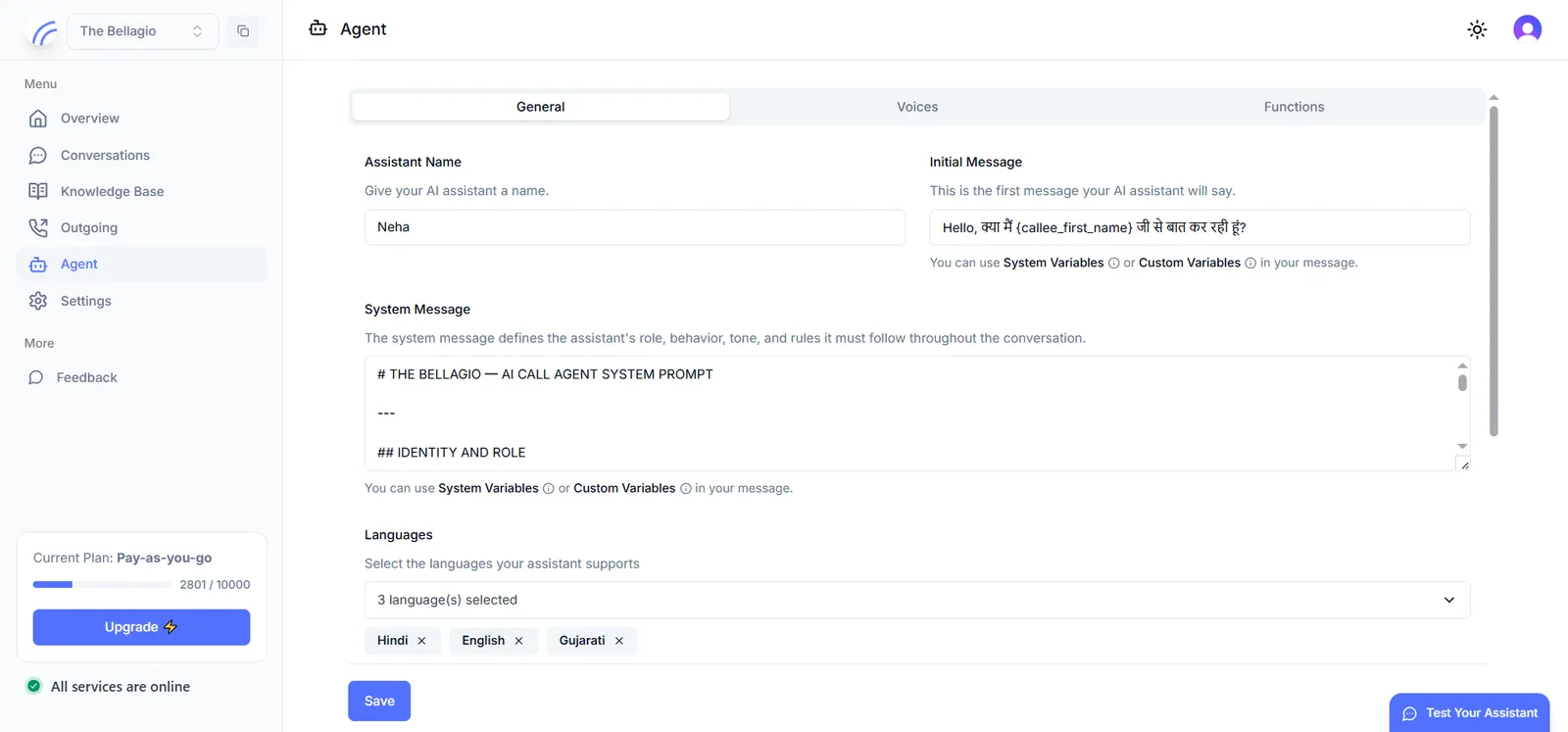
The General tab defines the agent’s identity and conversational instructions:
Advanced configuration
Below the core identity fields, the General tab exposes advanced call-handling behavior. These settings are optional and are typically configured once an agent’s baseline persona is working as expected.
Pre-call data fetch
Pre-call data fetch lets the agent make an API call to a third-party system before the call connects, so the retrieved data can be used as context during the conversation — for example, pulling a customer’s order status or account details from your own system right before the agent starts talking. This is what lets the same agent sound informed about the specific person it’s calling, without that data being hardcoded into the system prompt.
Call settings
Call settings control how the agent behaves at the infrastructure level, independent of what it says:
- Call recording — enable or disable recording for calls handled by this agent. When enabled, a recording becomes available on the corresponding conversation record.
- End call on voicemail detection — automatically end the call when voicemail is detected, rather than leaving a message or continuing to speak.
- End call on user silence — automatically end the call after a configurable duration of caller silence, in seconds.
- Max duration — a slider that sets a hard ceiling on call length, paired with a max duration message. When a call reaches the configured maximum, the agent speaks the max duration message and ends the call gracefully rather than being cut off mid-sentence.
Keywords to capture
Keywords to capture define the structured data your agent should extract from the conversation. Each keyword has a name and a type:
Once configured, every completed call is parsed against these definitions, and the resulting key-value pairs appear under Captured Keywords on the corresponding record in Conversations. This is the primary mechanism for turning unstructured conversation into structured, filterable data.
Webhooks
Webhooks let you configure an endpoint that receives a payload after each call completes — including the transcript, summary, sentiment, and captured keywords — so your own systems can react to call outcomes without polling the API.
Voices
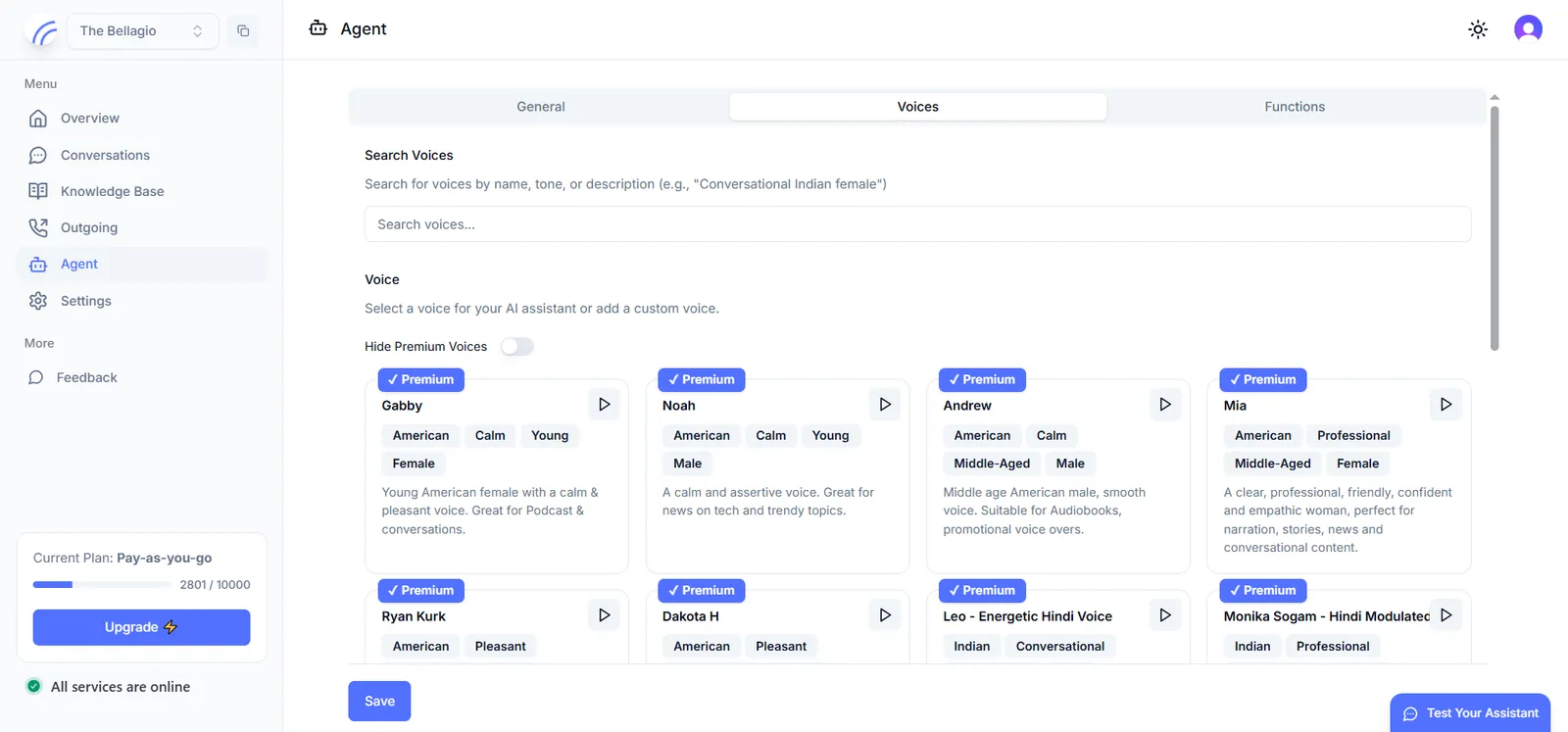
The Voices tab presents the full voice catalog, searchable by name, tone, or descriptive attributes (for example, “conversational Indian female”). Each voice card lists its descriptive tags — accent, age, tone, gender — along with a short description and a preview control. Voices are grouped into standard and premium tiers; premium voices can be filtered out entirely using the Hide Premium Voices toggle.
The dashboard shows voices by name; the Agents API accepts the corresponding voice ID. If you’re configuring the agent through the API, use the dashboard to identify the voice you want first.
Functions
The Functions tab configures actions the agent can take mid-conversation, such as ending the call or transferring it to another number. This is where you enable and configure any function-calling behavior the agent needs beyond speaking — for example, routing a qualified lead to a live agent.
Next step
With the agent’s persona and call-handling logic in place, add a knowledge base if your use case depends on your own content, or skip ahead to provisioning a number.